
Google Search Console is an indispensable tool for SEOs and webmasters. But the larger the site, the less complete the data that is available to you in GSC. In both the Performances and Pages reports, you can only get up to 1,000 rows for any metric. 1,000 queries is just a drop in the bucket for sites that regularly rank for hundreds of thousands of keywords, even small sites often rank for more than 1,000 keywords. Additionally if your site has more than 1,000 pages the row limits are an issue there as well, you won’t be able see complete performance and indexation data for all your pages.
Fortunately, there are a number of ways to work around the row limits in GSC. Here are six to consider:
Use the Search Analytics for Sheets Chrome addon
You can get exports of 25,000 rows (more for a fee), conveniently exported for you into Google sheets using the Search Analytics for Sheets Chrome addon. The name of the addon makes more sense if you know that the Performance report used be known as Search Analytics.
Once it is installed, you’ll find Search Analytics for Sheets in the Extensions menu in any Google sheet that you have open.
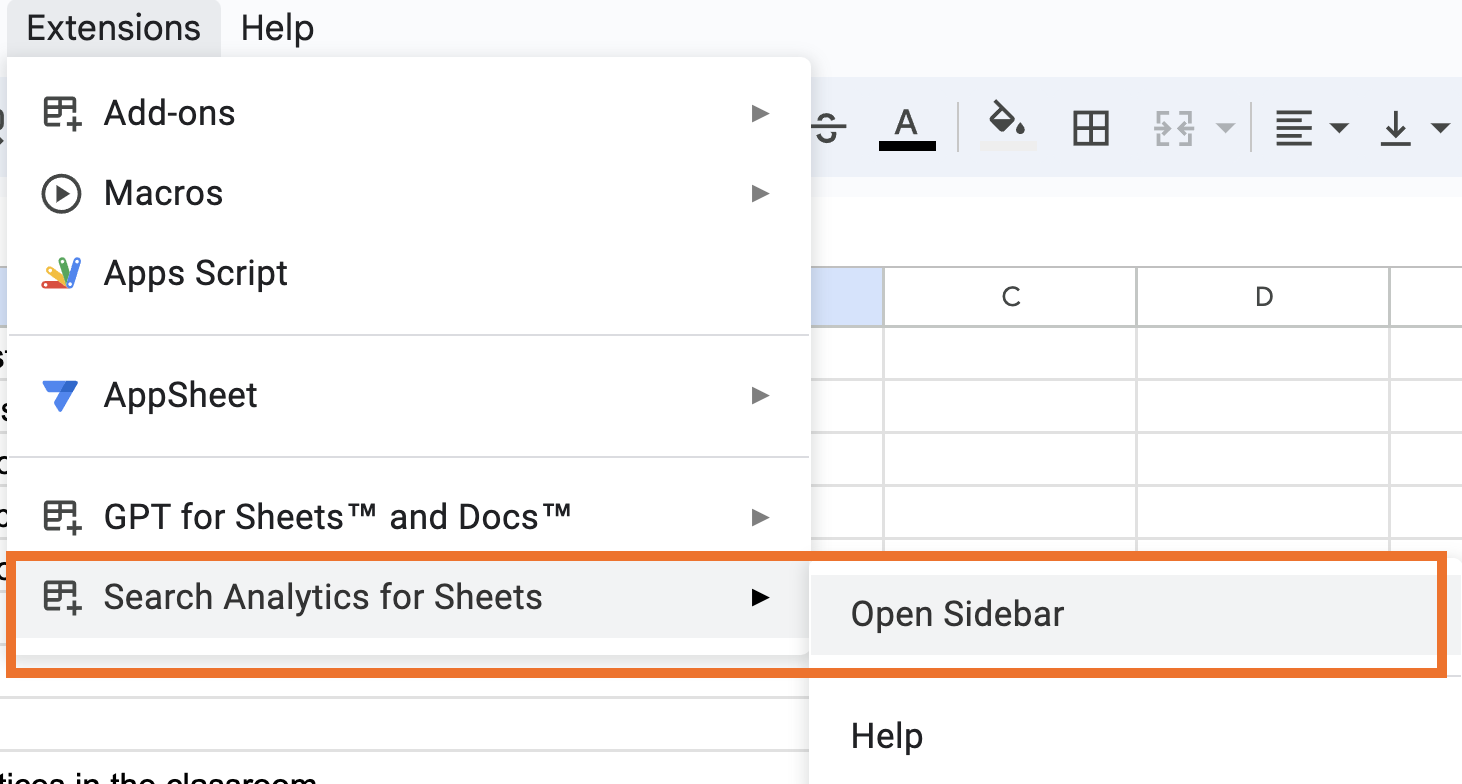
When you click to open the sidebar, you can chose the Search Console profile you want to query, input date ranges and set up filters. You can group by any of the dimensions available in the Google Search Console Performance Report, namely: date, queries, pages, countries, devices and search appearance. This addon is so useful, every agency I work with has this addon installed in their Google account to use with client sites.
Visit the Search Analytics for Sheets Website for information about for the addon and to find the Chrome Web Store installation link.
Create GSC profiles for your site’s folders
You may know that you can set up separate Google Search Console profiles for subdomains, but did you know you can also create a GSC profile for each of your site’s folders?
While you are still subject to the 1,000 row limit, 1,000 queries for the pages in one folder will give you deeper insights than 1,000 queries for your entire site. Combine this with the Search Analytics for Sheet addon (the GSC profile for the folder will be selectable in the sidebar), and you’ll have 25,000 queries available for your folder analysis.
Of course you can set up a page filter for your folder in the Google Search Console UI, but if you find that you are filtering over and over again, then you should go ahead and set up a GSC profile for that folder.
A GSC profile for a folder also can significantly help with the Pages report. If you have thousands and thousands of “Crawled, Not Indexed” pages and want more than 1,000 rows to analyze, segmenting your site by setting up a GSC profile for each your top folders will give you up to 1,000 rows per folder to review.

You set up a GSC profile for your folder just like you do for your site. Click on Add Property and then type the URL for your folder into the URL prefix entry box on the right. No validation needed!
Filter the Pages reports by XML Sitemap
In addition to setting up GSC profiles for your folders to get more detailed data, you also may find it useful to filter the Pages report by XML sitemap. This often overlooked filter can be very handy, especially if you have a separate XML sitemaps for each of your page types (Landing pages, Product, Blog).

Look for the drop down All known pages under the Page Indexing header to either filter by Submitted or Unsubmitted pages, as well as by each XML sitemap that you have submitted.
Even if you only have a single XML sitemap, filtering by All Submitted pages helps you zero in and find problems with your most important pages (which hopefully is what your XML sitemap contains).
Get Page and Query data in the same Report
This next workaround gets you 5,000 rows instead of 1,000 and more importantly addresses another limitation of the Google Search Console UI, which is that you can’t easily get a merged set of queries and pages together in one spreadsheet.
Pages and Queries are treated as separate dimensions in Google Search Console, you have to drill down to the individual page (or keyword) level to see the list of queries per page and then click back to select another page which is very cumbersome. What if you want a list of both pages and queries? This Google Search Console API query tool from Google allows you to export Page and Query data combined in one report.
You’ll need to put together some JSON to submit the request, but the UI will try help you out with suggesting the appropriate fields.
First enter the GSC profile name into the SiteUrl field and then compose the JSON in the Request Body field. Be sure to include the rowLimit property set to “5000”. Once you have the JSON correctly entered, then click Execute and you will get the 5,000 rows in a JSON format.
Here’s some JSON that filters for page URLs containing the word “video” but excludes data for queries containing the word “free”. Use this code as a starter template, copy and modify as you need to,
{
“startDate”: “2023-03-01”,
“endDate”: “2023-09-30”,
“dimensions”: [
“QUERY”,
“PAGE”
],
“dimensionFilterGroups”: [
{
“filters”: [
{
“dimension”: “PAGE”,
“operator”: “CONTAINS”,
“expression”: “video”
},
{
“dimension”: “QUERY”,
“operator”: “NOT_CONTAINS”,
“expression”: “free”
}
]
}
],
“rowLimit”: 5000,
“type”: “WEB”
}
If you prefer the output in a CSV format, there are tools online that will convert the JSON to a CSV for you.
Being able to see all the keywords a page ranks for in a list of pages can give you insights into keyword patterns across your higher performing pages.
Build a Looker Studio Report
Because it uses the Search Console API to fetch your data, Google Looker Studio (formerly known as Google Data Studio) is not subject to the row limits.
Here’s a query report that I built for a large site in Looker Studio, even when I filter there are still more than 30,000 queries for the month!

Looker Studio has a bit of a learning curve, but once you get used to you can whip together reports in no time.
Use Bulk Data Export
If you are working on a very large site and want a no limit approach, there is now a solution for you. In February 2023, Google added a new feature to GSC called “Bulk Data Export”. Bulk Export allows you to schedule daily exports of Search Console data performance into BigQuery.
You can find Bulk Export under Settings in GSC, note that you will need “Owner” permission to be able to set this up. The export is free, but Big Query has storage and compute costs.

While some queries are anonymized for privacy reasons, the bulk export is not subject to the row limits. By building your own data warehouse in Biq Query, you not only don’t have to worry about the 16 month time frame limit, you also will have an excellent source of long tail keyword data.
Himanshu Sharma has a blog post that guides you with step by step instructions of setting up Bulk Export.
Summary
The 1,000 row limit in the Google Search Console UI means that sites that rank for numerous keywords or that have more than 1,000 pages do not get sufficient data for in-depth SEO analysis. Fortunately, by using one or more of the six methods I have outlined above, you can access more comprehensive data. Better data will facilitate a more thorough understanding of your site’s SEO performance and will help you make more informed decisions on where to focus your SEO efforts.

