
So Google Search Console has told you you have pages with poor LCP. Or you have run Google Lighthouse on a page that complains of a LCP longer than 4 seconds.
LCP, Largest Contentful Paint, is one of the new Core Web Vitals, which include FID (First Input Delay) and CLS (Cumulative Layout Shift). The Core Web Vitals are part of Google’s new ranking factor: Page Experience that will be implemented in 2021.
But which element on your page is the LCP?
Core Web Vitals
The Core Web Vitals measure the speed, interactivity and stability of a web page.

LCP is a measure of how quickly the main content or element of a web page renders on a device. If your website is set up with a Google Search Console profile you can find out what Googlebot thinks of your LCP, as well as the FID and CLS in the Core Web Vitals report.
LCPs over 4 seconds are Poor Performers
If your LCP is over 4 seconds, it will be reported as a Poor URL in the Report. There is a Report for Mobile and for Desktop.
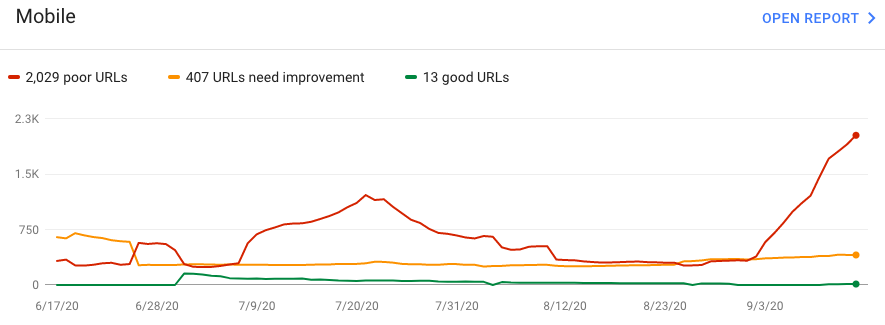
If your LCP is poor like in the above GSC report then you’ll want to fix it before 2021 if not before.
Google will give you sample URLs that are representative of a page archetype with the issue. So your next step is to evaluate the page’s LCP to see if can be improved. To do that you have to first identify the HTML element that is the LCP. You can use Chrome Dev Tools to do this.
Using Chrome Dev Tools to Identify the LCP
Using the Performance tab we can run a recording of the web page’s render that will show us the LCP.
- On MacOS you can open Chrome Dev Tools in the Chrome Browser using CMD SHIFT C
- Be sure to select the device type, below I’ve selected iPhone X, you can also select Responsive and set the dimensions.
- Then Click on the Performance Tab as shown below
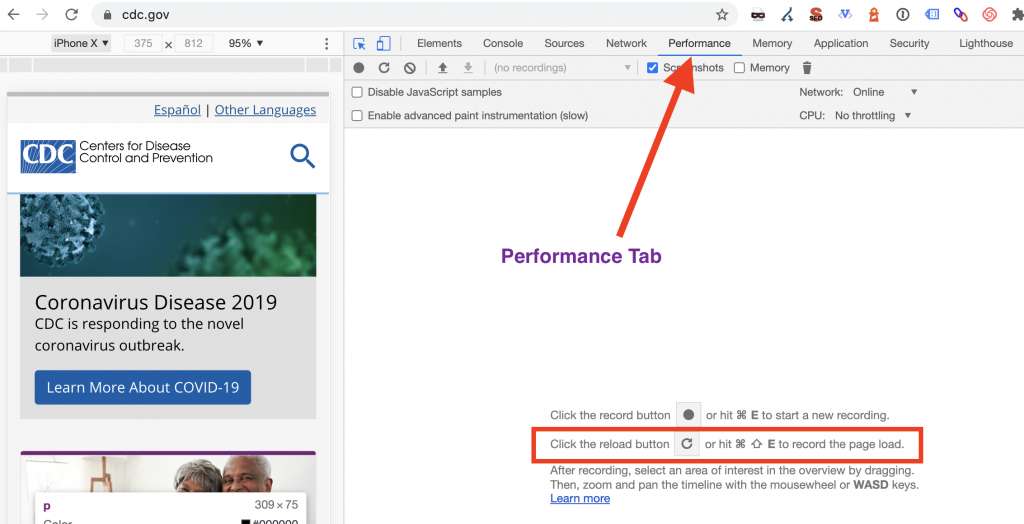
- Next you want to reload the page and start a recording. You can do this with clicking on the Reload Button that looks like a circular arrow.
- Wait until the recorded profile is loaded and the locate the Timings row and the LCP icon.
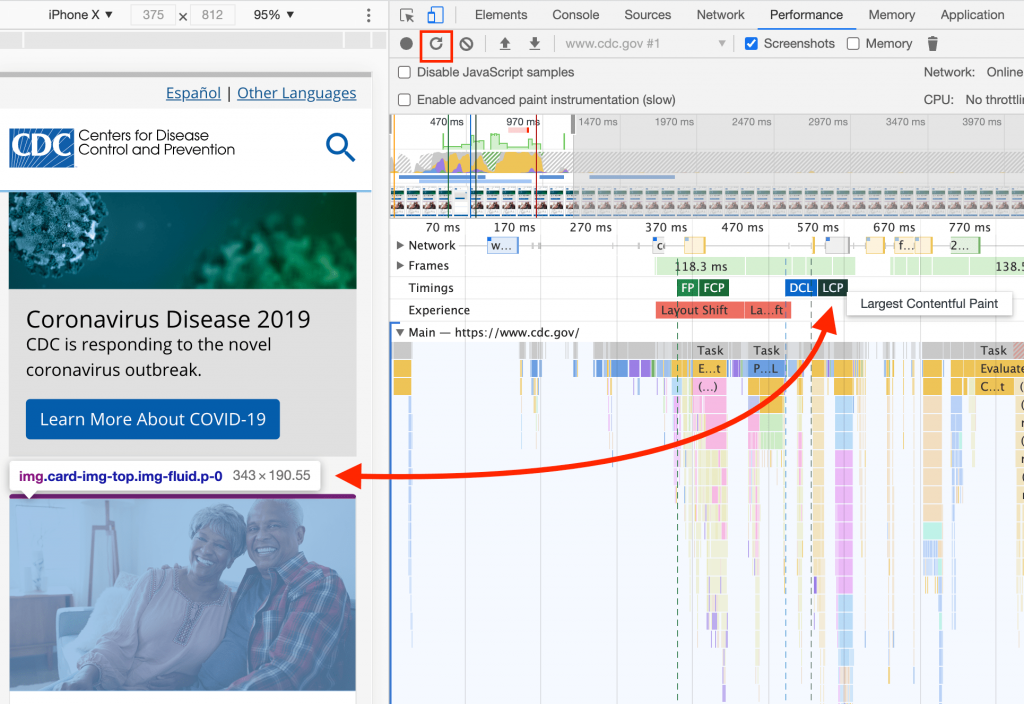
Now you can locate the HTML element that is being measured by the LCP:
- Mouse over the LCP icon and watch the web page to see what element is being highlighted with information.
- On the CDC.gov site (above) the LCP is the image above “Flu Vaccines”.
Tips for Improving Your LCP
Now that you know what element on your page is the LCP, how do you make it load faster? A slow LCP could be caused by a number of issues. It’s important to understand that the appearance of your LCP element on your page is the culmination of many steps that your page has to go through first. If there is any hangup in those steps before the page gets to the point that it is ready to show the LCP, then the slow LCP is a symptom of a problem that occurs earlier in the rendering process.
Here are some of issues I’ve encountered that resulted in a slow LCP
If your LCP is an image: Check that your image is optimized and not scaled down by HTML. Google Page Speed Insights will flag both of these issues. The good news is that both of these are easy to fix. I use imageoptim to optimize images, but on WordPress there are plugins like WPSmushIt that will help too. You may also want to transition to the next generation of image formats such as WebP which are more performant.
Slow Server Response Time: I’ve seen a slow LCP caused by an exceptionally slow server response time. If tools such as GTmetrix are telling you have a slow time to first byte and you are seeing a lot of waiting in the Waterfall chart, your slow LCP could be due to a slow server response. You may need more resources for your server or better hosting.
Render blocking assets: CSS and JavaScript can block a page from showing its LCP when they are rendering blocking. If the CSS and JavaScript is referenced in the HEAD section of your HTML and are not tagged as asynchronous, the page will have to wait until they are downloaded and executed before anything is shown to the user. Look for opportunities to either remove these assets from the HEAD section of your page or to tag them as deferred or asynchronous.
Make use of Google Page Speed Insights and the Performance tab in Chrome Dev Tools to troubleshoot further. Any improvement in the LCP score will be appreciated by your users and may help with your page’s ranking.

